Automated Scheduling for AI Voice Channel

Date: Wednesday, November 4, 2026 | Status: Live 🚀 | Availability: Courses on Courserev V2
⏱️ Your AI Voice, On Your Schedule
Some courses want AI Voice answering every call, all day. Others want it only after the pro shop closes. With the new Voice Channel Scheduler, you choose when AI Voice is active right from your Course Dashboard. It then switches itself on and off for you, so nobody has to flip a toggle at closing time.
🔀 Two Flexible Operating Modes:
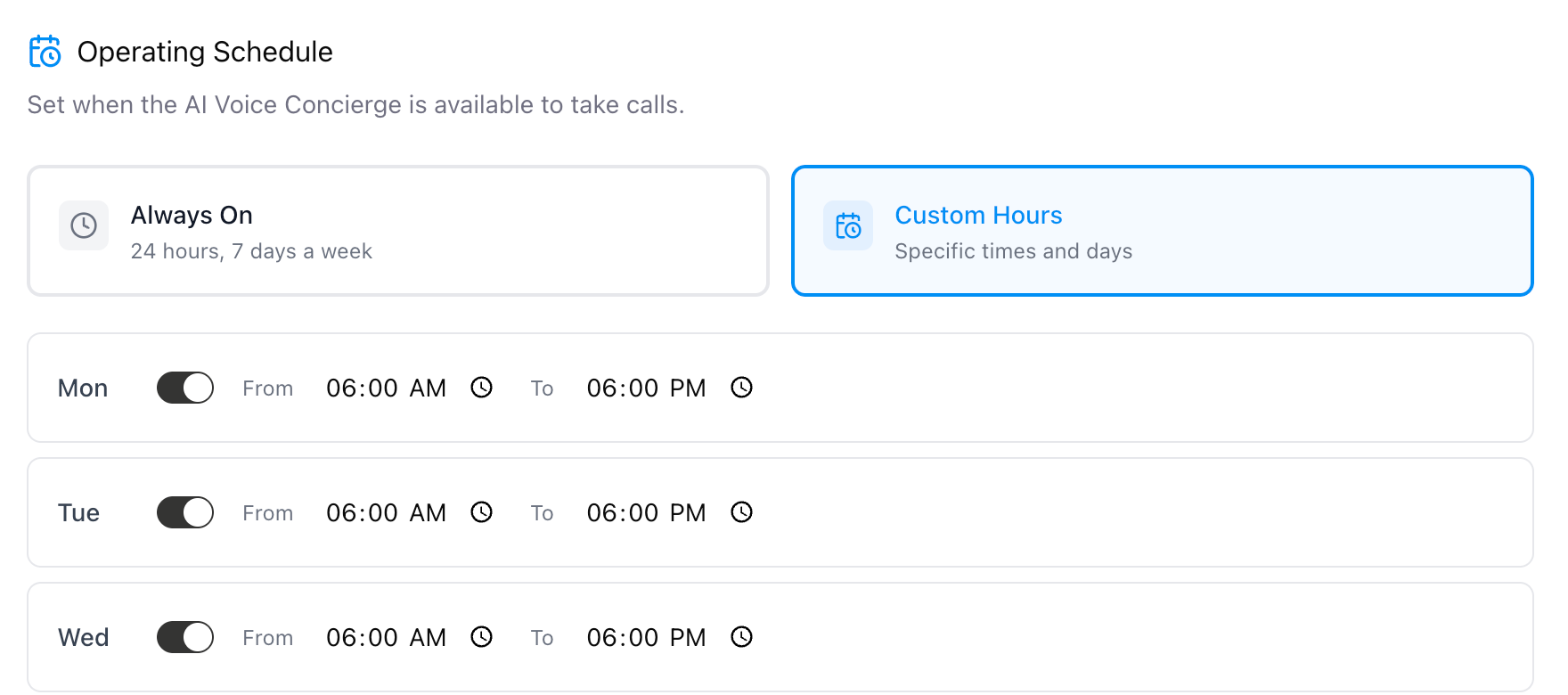
Always On (24/7):
Keep your AI Voice Concierge active around the clock to handle every incoming call, book tee times, and field questions with zero downtime.
Custom Hours:
Tailor exactly when AI takes over the phones using a granular daily schedule builder (Monday – Sunday).
Individual Day Toggles: Easily turn AI coverage ON or OFF for specific days of the week.
Recurring Time Windows: Set custom From and To hours per active day (e.g., after-hours coverage from 6:00 PM to 6:00 AM, Monday through Friday, or weekend-only support).
🔑 How It Works:
Pick your operating mode: Go to Settings > AI Voice Settings and choose one of two cards. Always On (24/7) is the default for every course. Custom Hours lets you set your own schedule.
Build your weekly schedule: With Custom Hours selected, a Monday–Sunday schedule builder opens. Turn each day on or off and set its From and To times.
Cover the overnight hours: Schedules can run past midnight, for example 6:00 PM to 6:00 AM, so AI Voice can handle calls while the pro shop is closed.
Automatic switching: AI Voice turns on and off at your scheduled times, with no manual changes and no page refresh. All times use your local time zone.
See the status at a glance: When AI Voice is paused outside your hours, a "paused due to schedule" badge appears on your Dashboard and a status banner appears on the AI Voice Channel page.
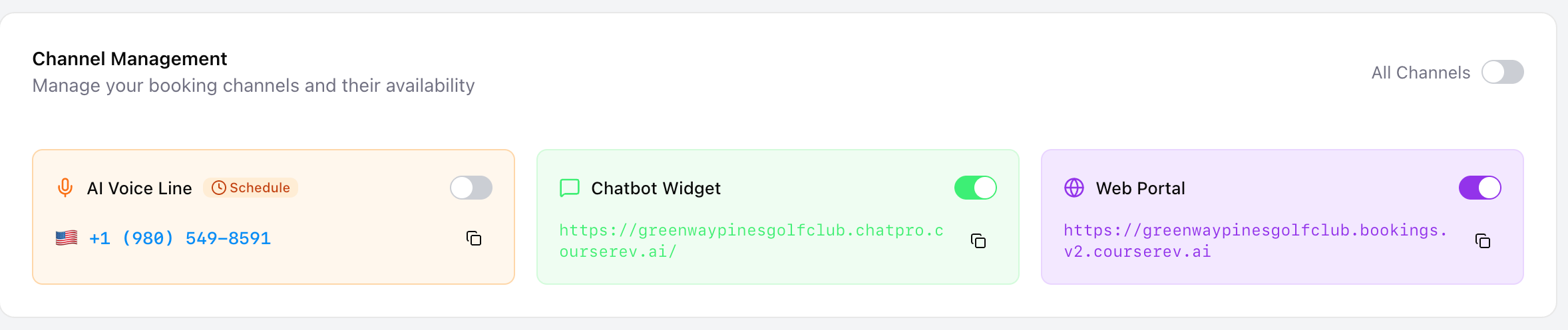
Calls still reach your team: While AI Voice is paused, calls go straight to your pro shop.
💡 Why Course Managers Love This:
You decide when AI Voice works: Run it all the time, or only when your staff are off.
Simple after-hours coverage: Golfers who call after closing still get help.
Nothing to remember: The schedule switches AI Voice on and off for you.
Clear status: You can always see whether AI Voice is active or paused.
🛠️ Getting Started:
Navigate to the Settings / AI Voice Concierge section in your Courserev V2 Dashboard to select your operating mode and configure your custom hours!
📖 Want a step-by-step walkthrough? Our How-To guide, with a short video, covers everything you need to set up your schedule: https://help.courserev.ai/articles/6349581-how-to-schedule-when-your-ai-voice-answers-calls